
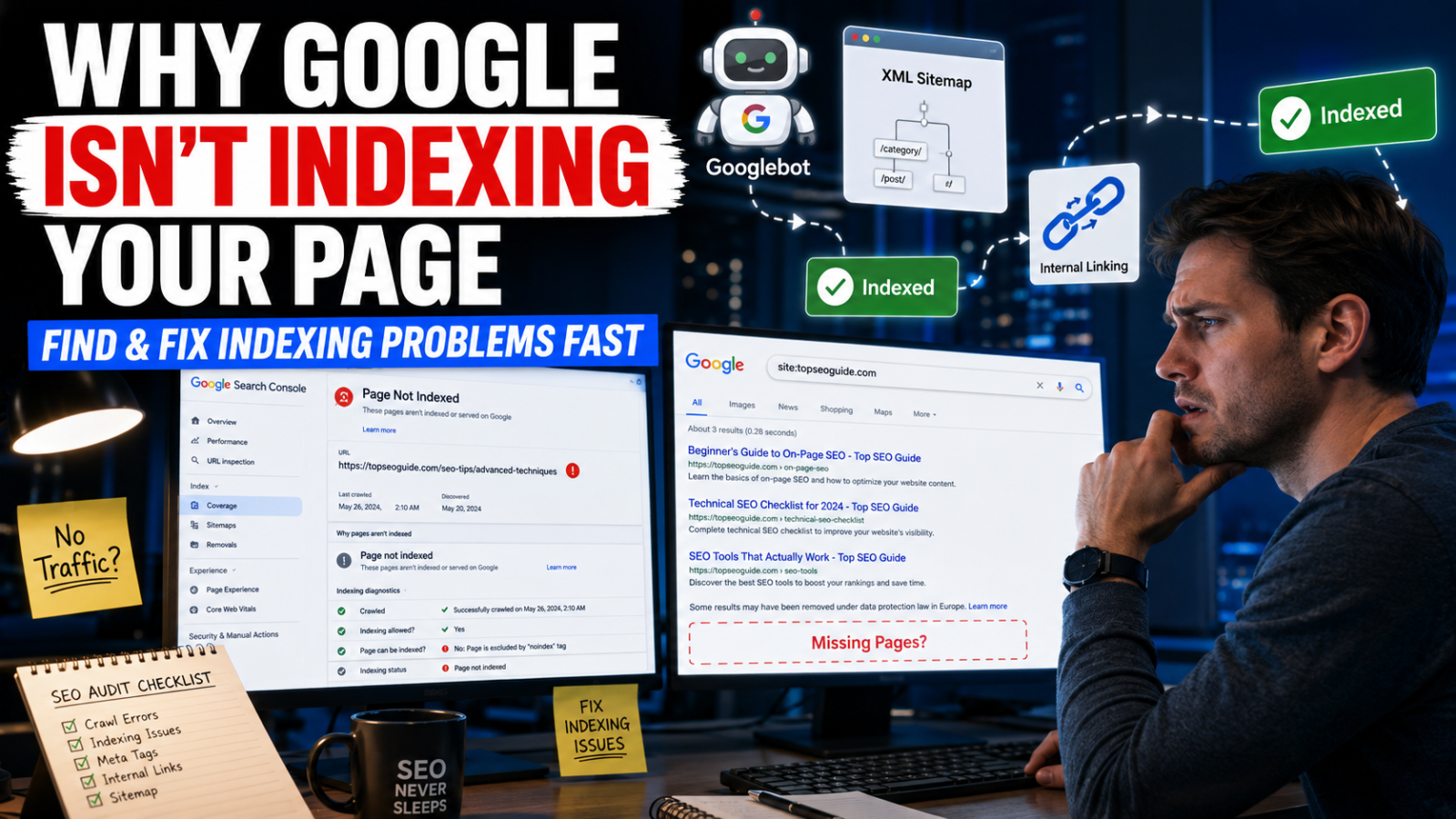
Publishing a new page on your website does not automatically mean Google will index it. Many website owners discover this the hard way after waiting days or even weeks, for traffic that never arrives.
You publish content, optimize the title, hit “publish,” and expect visibility. But sometimes the issue is much simpler: Google has not added the page to its index yet.
This can happen for several reasons:
- A blocked
robots.txtfile - An accidental
noindextag - Weak internal linking
- Duplicate content
- Or simply because Googlebot has not crawled the page yet
During SEO audits, indexing problems appear far more often than most people expect, even on websites that have been online for years.
Understanding how indexing works is one of the most important parts of technical SEO because pages that are not indexed cannot rank in Google search results.
A page is indexed when Google has crawled, processed, and added it to its search database. You can check indexing status using the site: operator, Google Search Console’s URL Inspection Tool, or the Pages report. If a page is not indexed, common causes include noindex tags, robots.txt blocks, duplicate content, or low-value pages.
What Does It Mean for a Page to Be Indexed?
A page becomes indexed when Google:
- Crawls the URL
- Analyzes the content
- Adds it to Google’s search index
Only indexed pages can appear in search results.
Many people assume crawling and indexing are the same thing, but they are different processes. Google may crawl a page and still decide not to index it.
This distinction matters because a crawled-but-unindexed page remains invisible in search results.
Method 1: Use the site: Operator in Google
The fastest way to check whether a page is indexed is by using Google’s site: search operator.
Type this into Google search:
site:yourdomain.com/page-urlExample:
site:example.com/blog/what-is-ctr/If Google returns the page, it is indexed.
If no result appears, the page may:
- Not be indexed
- Or be indexed but temporarily hidden for that query (less common)
Check Total Indexed Pages
You can also search:
site:yourdomain.comThis shows an estimated number of indexed pages from your domain.
While the count is not perfectly accurate, it helps identify potential indexing issues.
For example:
- A site with 500 published pages but only 30 indexed pages likely has technical SEO problems.
- This often happens after website migrations, CMS updates, or accidental noindex configurations.
Method 2: Use the URL Inspection Tool in Google Search Console
The URL Inspection Tool inside Google Search Console is the most reliable method for checking indexing status.
It provides detailed information including:
- Whether the page is indexed
- Last crawl date
- Canonical URL detected by Google
- Mobile usability status
- Indexing errors
- Crawl issues
- Core Web Vitals information
How to Use It
- Open Google Search Console
- Select your property
- Paste the URL into the inspection bar
- Wait for the report to load
Common URL Inspection Results
“URL is on Google”
This means the page is properly indexed and eligible to appear in search results.
This is the ideal status.
“URL is not on Google”
The page is not indexed.
Google usually provides a reason, such as:
- blocked by robots.txt
- noindex tag detected
- duplicate without user-selected canonical
“URL is known to Google but not indexed”
Google discovered the page but chose not to index it.
This commonly happens when:
- content quality is weak
- pages are too similar
- internal linking is poor
- Google sees limited search value
In real SEO projects, this issue frequently affects thin category pages, tag pages, and automatically generated content.
Method 3: Use the Pages Report in Search Console
If you want a broader indexing overview, the Pages Report is extremely useful.
Inside Search Console:
- Go to Indexing
- Open Pages
Google divides URLs into:
- Indexed pages
- Non-indexed pages
Common Non-Indexed Statuses
Crawled – Currently Not Indexed
Google visited the page but decided not to index it yet.
Often caused by:
- low-value content
- duplicate information
- weak internal signals
Discovered – Currently Not Indexed
Google knows the page exists but has not crawled it yet.
This is common on:
- new websites
- large websites
- poorly linked pages
Excluded by noindex
The page contains a noindex directive.
This is one of the most common indexing mistakes, especially on WordPress websites during development phases.
Alternative Page with Canonical Tag
Google selected another page as the main version.
This usually happens with:
- duplicate content
- pagination issues
- URL parameter duplication
Method 4: Search for a Unique Text Snippet
Another quick method is searching for a unique sentence from the page inside quotation marks.
Example:
"unique text fragment from the page"If your page appears, it is indexed.
This method is especially useful when:
- analyzing competitor websites
- checking pages without Search Console access
- doing quick manual SEO reviews
However, it is still less reliable than Search Console data.
Why Is Google Not Indexing My Page?
There are several common causes.
1. The noindex Tag Is Active
If your HTML contains:
<meta name="robots" content="noindex">you are directly telling Google not to index the page.
This frequently happens when:
- staging sites go live
- WordPress discourages search engines
- SEO plugin settings are misconfigured
2. Blocked by robots.txt
If your robots.txt file blocks Googlebot access, Google cannot crawl the content properly.
Example:
Disallow: /blog/This can unintentionally block important sections of a website.
3. Duplicate Content Problems
When multiple pages contain nearly identical content, Google chooses one canonical version and ignores the others.
This issue commonly appears on:
- ecommerce filters
- tag archives
- parameter URLs
- duplicate service pages
4. Thin or Low-Quality Content
Google increasingly avoids indexing pages that provide little value.
Pages with:
- very little text
- repetitive content
- weak user intent
- AI-generated filler text
are more likely to remain unindexed.
This has become far more noticeable after Google’s Helpful Content updates.
5. Orphan Pages
A page without internal links is difficult for Google to discover.
Even strong content may remain unindexed if nothing on the website links to it.
This is surprisingly common on:
- old blog posts
- forgotten landing pages
- migrated websites
6. Crawl Budget Issues
Large websites may face crawl prioritization problems.
If Google spends resources crawling:
- duplicate URLs
- low-value pages
- parameter variations
important pages may be delayed or skipped.
What To Do if Your Page Is Not Indexed
Once you understand what is preventing the page from being indexed, the next step is usually straightforward and much easier to resolve.
Remove the noindex Tag
Check:
- SEO plugin settings
- page source code
- CMS indexing settings
Then request indexing again.
Fix robots.txt Restrictions
Review your robots.txt file carefully and remove accidental blocks.
A single misplaced directive can prevent indexing sitewide.
Correct Canonical Tags
Ensure canonical URLs:
- point to the correct version
- match internal links
- align with sitemap URLs
Improve Content Quality
Before requesting indexing, strengthen the page by:
- adding useful information
- improving structure
- answering search intent clearly
- expanding thin sections
Google is much more likely to index pages that demonstrate real value.
Add Internal Links
Link to the page from:
- blog posts
- category pages
- homepage sections
- related articles
Internal linking remains one of the strongest indexing signals.
Submit the URL for Indexing
Inside Search Console:
- Open URL Inspection
- Enter the URL
- Click Request Indexing
Google does not guarantee immediate indexing, but this often speeds up the process.
How Long Does Google Take to Index a Page?
There is no fixed timeframe.
Indexing speed depends on:
- domain authority
- crawl frequency
- site structure
- internal linking
- content quality
On authoritative websites, indexing may happen within hours.
On small or inactive sites, it can take several weeks.
How to Speed Up Indexing
The most effective approach combines:
- URL Inspection requests
- XML sitemap submission
- strong internal linking
- valuable content
- proper technical setup
In real-world SEO campaigns, pages connected to active sections of a website usually get indexed much faster than isolated URLs.
Quick FAQs
How do I know if Google indexed my page without Search Console?
Use the site: operator in Google or search for a unique sentence from the page inside quotation marks. These methods are fast but less accurate than Search Console.
Why is Google crawling my page but not indexing it?
Google may consider the content low-value, duplicate, or technically conflicting due to canonical tags or noindex directives.
Can I force Google to index a page?
No, but you can strongly encourage indexing by:
- requesting indexing
- improving content quality
- adding internal links
- ensuring no technical blocks exist
Do unindexed pages hurt SEO?
Not always.
Some pages are intentionally excluded from indexing, such as:
- privacy policies
- duplicate filters
- internal search pages
However, valuable pages remaining unindexed can significantly reduce organic traffic potential.
Final Thoughts
Indexing is one of the foundations of SEO. A page that is not indexed simply cannot generate search visibility, regardless of how well the content is written.
That is why regularly checking indexing status should be part of every website’s SEO maintenance routine.
In many cases, the issue is not the content itself, it is a small technical problem preventing Google from properly understanding or accessing the page.
By combining:
- Search Console monitoring
- proper technical SEO
- strong internal linking
- valuable content
you give Google the best possible signals to crawl, index, and rank your pages successfully.